America's Software Corporation
Student Tracking Software
America's Software Corporation
Explore what TalEval has to offer
Grade Entry Form
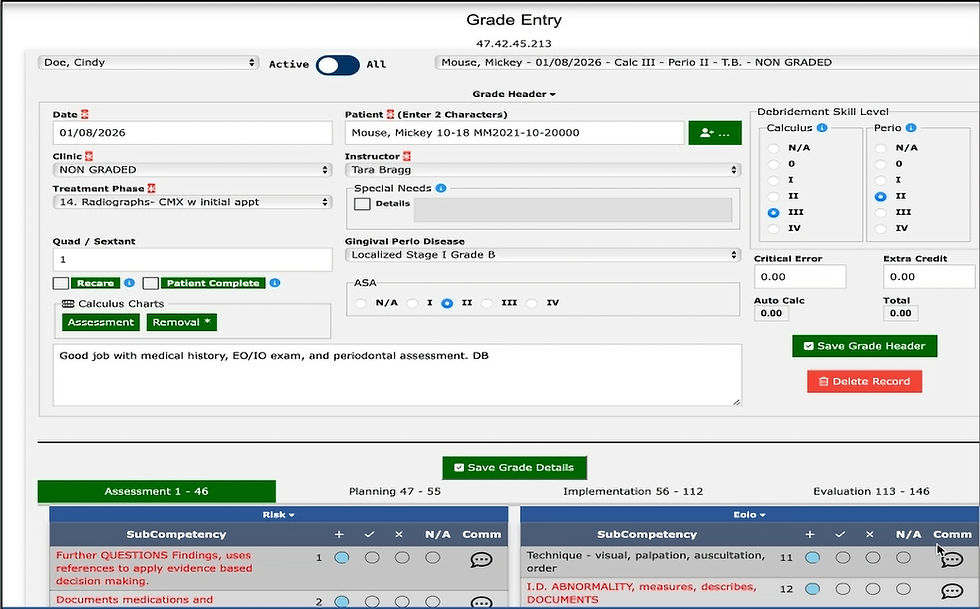


Your instructor will provide a header for documenting patient experiences.
TalEval utilizes the Dental Hygiene (DH) Process of Care established by the American Dental Hygiene Association.
This process is organized into four major categories:
-
Assessment – Collecting and analyzing patient data
-
Planning – Developing patient-centered care plans
-
Implementation – Carrying out clinical procedures and interventions
-
Evaluation – Assessing outcomes and effectiveness of care
Within these categories, TalEval includes:
-
14 main sub-competencies
-
146 individual procedural items (this number may vary depending on the school or program)
The debridement skill level of difficulty contributes to your overall grade and includes both critical and non-critical errors. Critical errors, shown in red, result in additional point deductions, while non-critical errors may also lead to point reductions depending on performance. A check mark (✓) indicates one error was made, and an X mark (✕) indicates more than one error. No points are added or deducted for marks labeled with a plus (+) or not applicable (N/A).
Instructor Comments

Instructor comments are provided to you to help identify improvement areas. Instructor comments enhance learning and retention, improves clinical skills and accuracy and keeps written permanent records.
You can view your comments on the patient care report or in grade entry
View Progress

When logging into TalEval, the MY PROGRESS area appears on the form. This grid will show point values to date.
Pick the clinic, you will only see a list of clinics where there have been grades entered for you. You can see how many perio/calc points and critical error points you have. (Extra credit points may or may not be used in your program)
Viewing your Grade Reports

Important Note: Your grade report includes all grades entered through the end of the previous week (Sunday). Error weights are calculated after all grades are entered, reports are generated only after the complete week is finalized.
Use the login name and password provided by your instructor to sign in to TalEval.com. If you forget your login or become locked out, contact your instructor for assistance. To view or print your grade report: Select Student Grades (View Only) from the menu and select the clinic. Enter the From date (the first day of the clinic period). Enter the Median Performance Level (MPL) as instructed by faculty. Usually 80. Select View My Grades. The report shown on the next slide will appear.
Grade Report Calculations

Column 2 in the top grid shows the number of errors made in each of the 14 main categories. The third column shows the weight of each error. In the bottom section you will see how Patient Points you gained during debridement sessions based on the level of difficulty of the patient. The last line under this grid labeled GRADE shows the overall grade calculation.

Patient Tracking Report
The patient tracking report for Calc/Perio/Age shows all patient experiences in grade entry for the categories. You can narrow the report to include only completed patients and/or only patients where no critical error was made. Calc/Perio totals appear when your instructor indicates the level of difficulty of debridement in the grade header. Special Needs (SN), Patient Complete (PC) and Recare Patients (RC) totals appear when those check boxes are checked by the instructor in the grade header.
Calculus Assessment Chart

To create an assessment chart click on the Calculus Assessment menu option. Then pick the clinic name and the patient name. A chart will appear. Enter the date of the first visit (1) and enter the teeth numbers assessed, separated by commas. To document your findings, click the outer radio buttons to chart SUPRA and the inner radio buttons to chart SUB. Then press SAVE. You can enter up to 6 visits for the same patient on the chart. Once the instructor evaluates your assessment you will see a % in the SUPRA and SUB columns for each visit.
Add Patient Profiles

Select Patient Data menu option. Make sure the patient does not already exist by typing in the last 2 letters of their last name - press green FILTER button. Matching patients will appear in the grid. If the patient does not exist click the green + at the top right. E. Enter 2 pieces of patient information. Name or ID and Age (varies by school).
To view your grade records entered by faculty, select Patient Grades View Only menu option. At the top of the form pick the grade record you want to view. You can see everything the instructor entered. The grade header, errors made and comments.
